1. Receiving an order
- When an order is placed for an item that is fulfilled by your collection, you will receive an email to alert you from the Shop admin (shop@artuk.org) with the subject "Order Placed Notification To Seller". This will provide a summary of the order.
- Follow the link "logging into your account" within the email to proceed, where you will be directed to the login page.
- Use the login details provided to access your account.
2. Finding the order
- Once logged in, you will be directed to the Marketplace Dashboard. Navigate to, and select the Orders section on the left-hand sidebar. This is where any orders placed will be shown. Note: all orders placed for your collection will be shown here, including print-to-order products which are fulfilled by Heritage Digital and require no action from the collection.
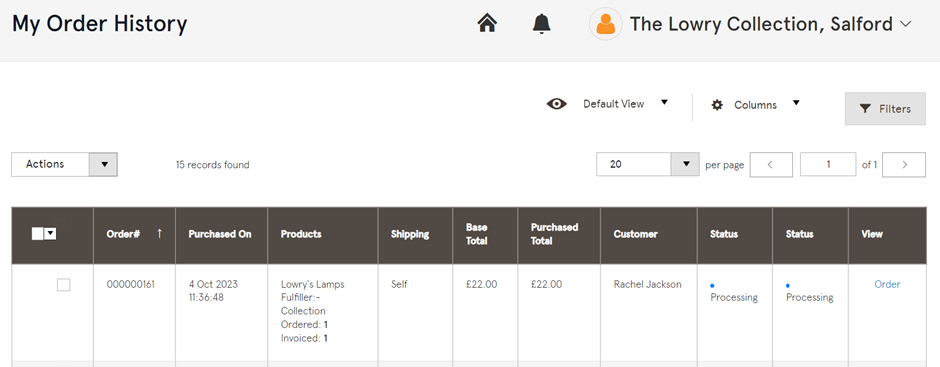
- Identify the products which require fulfillment by the collection by referring to the Shipper column which will either state Self or Heritage Digital. Self - fulfilled by the collection, Heritage Digital - fulfilled by Heritage Digital and no action is required from the collection.
- The fulfiller will also be shown against each individual product ordered within the Products column, shown as Fulfiller - Collection in the example below.
- When the order is received, the status columns will show as Processing.
3. Process the order
- Once you have identified the order to be fulfilled, select the check box in the first column of the order line
- Select Print Invoice from the drop down list next to Actions. Customer and order information can be found on the invoice.
- When you are ready to ship the order, select Order from the View column to take you into the order
- Select Ship
- Add the courier name and tracking details where requested. If you do not have tracking details, enter N/A (this box requires something to be added before proceeding)
- Enter the quantity of products being shipped - this should match what is shown
- Select Submit Shipment
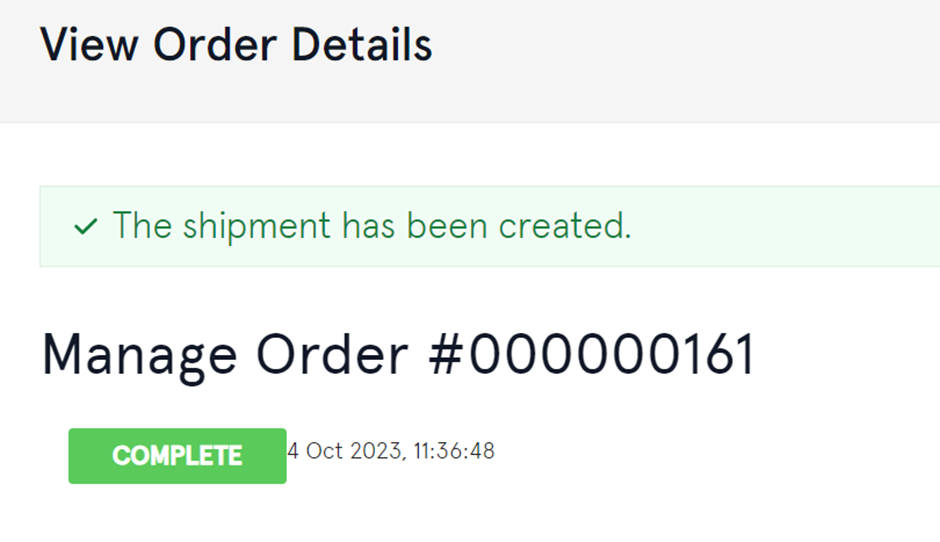
- A message to advise the shipment has been created and the order is complete will generate on the page
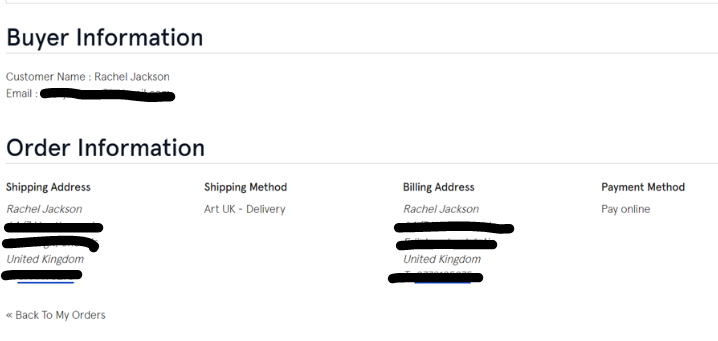
- Navigate back to the order list by scrolling to bottom of the page and selecting Back to My Orders
- Back on the orders page, the order status will update to Complete
- Within the Products column, this will now show as Ordered: QTY, Invoiced: QTY, Shipped: QTY

- An email will automatically be sent to the customer to advise their order has been shipped, including details of the courier and tracking details.
4. Print packing slip
- Select the order by ticking the check box in the first column
- Select the drop down list next to Actions - select Print Packing Slip
5.. Multiple orders
If you have a number of orders to action, invoices and packing slips can be printed in bulk for ease.
- Select the orders to be processed by ticking the check boxes in the first column.
- Select the drop down list next to Actions
- Select either Print Invoices or Print Packing Slips as required
- Documents will be downloaded for all selected orders
6. Misc.
- Within the order, there is the option to Send Email. This resends the order confirmation to the customer and may be useful if the customer contacts you to advise they have not received an order confirmation so this can be resent.
Was this article helpful?
That’s Great!
Thank you for your feedback
Sorry! We couldn't be helpful
Thank you for your feedback
Feedback sent
We appreciate your effort and will try to fix the article